Yes, ChatGPT can make a PowerPoint. As of November 2026 there are four practical routes: ask ChatGPT Work for a .pptx file, build a collaborative deck in ChatGPT Slides and export it, use the ChatGPT for PowerPoint add-in inside PowerPoint, or have ChatGPT write an outline that PowerPoint turns into slides. Which one you can use depends on your plan and where you want to finish the deck. Below are the steps for each, a prompt you can reuse, and the limits worth knowing before you present.
Everything here is based on OpenAI's and Microsoft's public documentation as of November 15, 2026 (sources at the end). Features are still rolling out, so your account may show slightly different options.
The four routes at a glance
| Route | Plans (per OpenAI, Nov 2026) | What you get | Good for |
|---|---|---|---|
| ChatGPT Work | All plans in the desktop app; Plus, Pro, Business, Enterprise and Edu on web and mobile | A presentation file created from your instructions and sources | A first draft from notes or files |
| ChatGPT Slides | Pro, Business and Enterprise with Space access | An editable deck inside ChatGPT, exportable to PowerPoint, PDF or Google Slides | Team decks you revise together |
| ChatGPT for PowerPoint add-in | All plans, Free included | Slides created and edited inside PowerPoint | Working in your own template |
| Outline + PowerPoint | Any plan | Slides built by PowerPoint from a Word outline | Full control over every slide |
Route 1: Ask ChatGPT Work for a PowerPoint file
ChatGPT Work is OpenAI's mode for longer, multi-step tasks. According to OpenAI's help center, it "can create or edit documents, spreadsheets, presentations, reports, and analyses."
- Open Work and describe the deck: topic, audience, how long you will speak, and how many slides you want.
- Attach the source material: a report, meeting notes, a spreadsheet.
- Name the output format, for example "a PowerPoint (.pptx) file".
- Say what must not change: figures, slide order, terminology, branding.
- Review the file and ask for changes before you download or share it.
If you make the same kind of deck often, Work can also start from a reference file. Attach your company's PPTX and ask it to keep the master slides and section order while replacing the content. For repeat jobs, OpenAI's help center describes a Template Creator that saves a reference deck plus instructions as a reusable template, which you then pick from @Presentations in the composer. If you only need the words from an old deck to paste into a prompt, our free slides to notes tool exports every slide's text and speaker notes as TXT or Markdown.
Files created in cloud Work may be saved to your Library or Space; files created in a Temporary Chat are not saved to the Library.
Route 2: Build it in ChatGPT Slides and export
ChatGPT Slides creates a deck you can edit inside ChatGPT, together with teammates, before exporting it. OpenAI lists it for Pro, Business and Enterprise plans with Space access, and notes that it is still rolling out to eligible accounts.
- Open Work and ask ChatGPT to "create ChatGPT slides," with the topic, audience and material to cover. Or go to Space and choose Create → Slide to start from a blank slide or a template.
- Edit text, images, shapes, tables and charts directly. To change one element with ChatGPT, select it, choose Request edits and describe the change.
- Share the deck for real-time editing and comments if others need to contribute.
- Present from ChatGPT, or on the web export to PowerPoint (to keep editing a .pptx), PDF (to share a read-only copy) or Google Slides.
Two details matter for the final file. On the web, the font picker only shows fonts available in your browser, so a deck built there may not use your brand fonts. And OpenAI itself advises opening the exported presentation and checking content and formatting before using it. If you plan to finish in Google Slides, our guide on importing a PPTX into Google Slides lists what to check after the move.
Route 3: Use the ChatGPT for PowerPoint add-in
If you already have a template, working inside PowerPoint keeps its layouts, fonts and colors. OpenAI says the add-in is available on all plans: Free, Go, Plus, Pro, Business, Enterprise, Edu, Teachers and K–12.
- In PowerPoint, go to Home → Add-ins, search for ChatGPT and add it.
- Open ChatGPT from the ribbon and sign in with your OpenAI account.
- Ask it to create slides from notes or a document, add a section, rewrite a slide, or tighten a dense one.
- Review each change before you share the deck.
Because the edits happen in your own file, this route gives you the most control over the result.
Route 4: Let ChatGPT write an outline, then let PowerPoint build the slides
This works on any plan and keeps you in charge of every slide. PowerPoint for desktop has a built-in Slides from Outline command that creates one slide per Heading 1 in a Word document.
- Ask ChatGPT for a slide-by-slide outline: one line for each slide title, two to four short bullets underneath.
- Paste it into Word. Apply Heading 1 to each slide title and Heading 2 to each bullet. Text left in the Normal style is not sent to PowerPoint.
- Save and close the Word file.
- In PowerPoint, choose New Slide → Slides from Outline and select the file.
- Apply your design or template, then add charts and images.
A prompt you can reuse
Whichever route you choose, a specific prompt saves rounds of revisions:
Create a 10-slide PowerPoint (.pptx) for a 12-minute update to our leadership team. Use only the attached report. Slide order: title, summary, three findings, one chart slide, risks, next steps, ask, appendix. One idea per slide, no more than four bullets. Keep every number exactly as written in the report. If a figure I need is not in the report, write [TBD] instead of estimating. Add speaker notes of about 80 words per slide.
The last two instructions are the ones people skip. Telling ChatGPT to copy numbers as written and to mark gaps instead of filling them makes the final check much faster. For more prompt patterns, see our 7-part formula for slide prompts.
Limits to plan for
- Plan and rollout differences. Slides and parts of Work depend on your plan, workspace settings and platform. If you do not see an option, check your plan before rewriting your prompt.
- Check every figure. OpenAI's own guidance is to review the text, figures and layout before sharing or presenting. When a deck summarizes a long document, compare each number on the slides with the source.
- Export fidelity. Fonts, charts and layouts can shift when a deck moves between ChatGPT, PowerPoint and Google Slides. Open the exported file on the computer you will present from.
- Design is a starting point. A generated deck gives you structure fast; your audience, your data and your template still need a human pass.
When a document-to-slides tool fits better
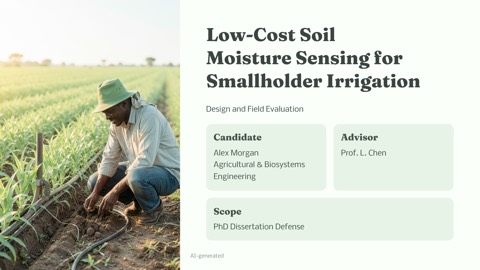
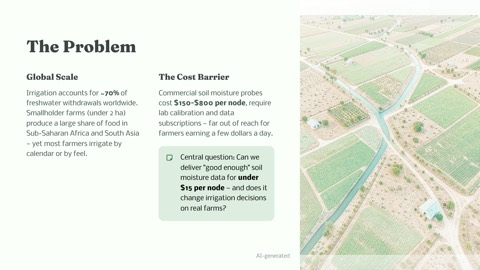
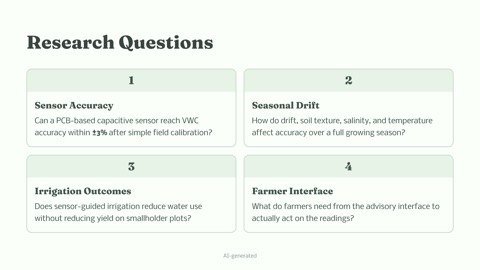
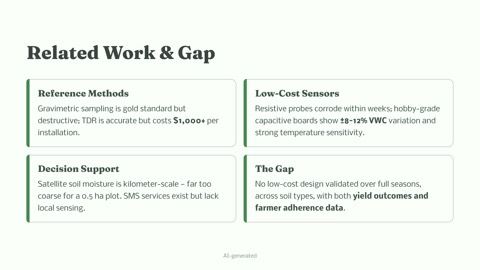
If your deck comes from one long document with numbers in it, such as a thesis, a research report, a business plan or an annual review, the step that takes the longest is usually checking that every figure on the slides matches the source. That is the job our AI slide studio is built for. You upload the Word or PDF file and get a slide-by-slide outline first, at no credit cost. Numbers are written as they appear in your document, data your document does not contain is marked [TBD], and before you generate, the outline shows how many of its numbers match your source. Generation costs 2 credits per slide, shown before you start, and every deck exports as an editable PPTX, a PDF and PNG images. To see a real input and output, open the Word report to slides example.
For a quick decision, here is the short version: use ChatGPT when you are drafting from scattered notes and want to talk the deck into shape; use a document-to-slides tool when the source document already exists and its numbers have to survive intact. For thesis and proposal defenses specifically, our academic mode adds the format reviewers expect.
FAQ
Can ChatGPT make a PowerPoint for free?
Partly. As of November 2026, OpenAI lists the ChatGPT for PowerPoint add-in on every plan, Free included, and ChatGPT Work on every plan in the desktop app. ChatGPT Slides is limited to Pro, Business and Enterprise. Usage limits apply on every plan, so long decks may need several sessions.
Can ChatGPT edit an existing PowerPoint?
Yes. With the ChatGPT for PowerPoint add-in it works inside the deck you have open. In ChatGPT Work you can attach a PPTX as a reference, ask it to keep the master slides and section order, and replace the content with new material.
Is a PowerPoint made by ChatGPT editable?
Files exported from ChatGPT Slides to PowerPoint are meant for further editing, and the add-in works directly in PowerPoint. OpenAI still advises opening the exported file and checking its content and formatting before you use it.
Sources
- OpenAI Help Center, Creating and collaborating on slides in ChatGPT: availability, creating, editing, sharing and exporting ChatGPT Slides.
- OpenAI Help Center, Creating and editing documents, spreadsheets, and presentations with ChatGPT Work: creating files in Work, reference files, templates, where files are saved.
- OpenAI, ChatGPT Work: plan availability for Work.
- OpenAI, ChatGPT Slides: plan availability for Slides.
- OpenAI, ChatGPT for PowerPoint: add-in availability and installation.
- Microsoft Support, Create a PowerPoint presentation from an outline: Slides from Outline and heading styles.
Checked November 15, 2026. ChatGPT is a trademark of OpenAI, and PowerPoint is a trademark of Microsoft. This guide is independent; we are not affiliated with or endorsed by either company.
 Editorial Team